
myChart Spanish: What Patients Need to Know
Access myChart
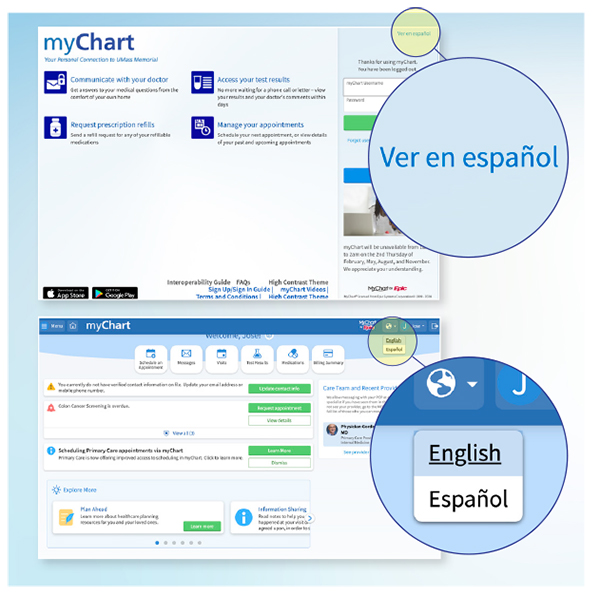
To view myChart in Spanish, select Ver en español in the upper right of the login page. Once you log in, you can switch between English and Español using the globe icon in the upper-right of the screen.
myChart Mobile
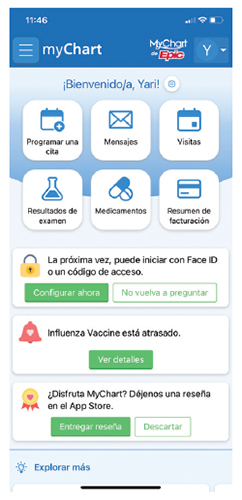
If Spanish is set as the preferred language on your mobile phone, myChart will automatically be viewable in Spanish. If you need to change your phone setting to view myChart in Spanish, please follow these steps:
iPhone
- In your phone settings, tap General
- Tap Language & Region
- In the Preferred Languages section, add/tap Español
Android
- In your phone settings, tap General Management
- Tap Language
- Tap Add Language
- Tap Español
Language Translation Exceptions
While most myChart information is available in Spanish, some information, such as Visit Notes and Test Results, are only available in English.
- Visit Notes: Contact your provider’s office for interpreter assistance
- Test Results: Select Learn More for a description of the test in Spanish
- Billing/financial assistance inquiries: Call Interpreter Services at 800-225-8885
myChart Notifications
If the language on your mobile phone is set to Spanish, you will receive email and text notifications in Spanish.
myChart Messages
MyChart messages are translated into Spanish. If needed, the patient’s care team, along with an interpreter, will call the patient.
Note: myChart messages are intended for non-urgent communication.
Customer Service Messages
Customer service messages (except billing/financial assistance inquiries) are translated into Spanish.