
Two-Factor Authentication for myChart
Learn how two‑factor authentication (2FA) helps protect your personal health information and how to set it up when you create a new myChart account.
Keeping Your Health Information Safe
To protect your personal health information, myChart uses two-factor authentication (2FA) when you sign in.
This means you’ll use:
- Your myChart username
- Your password
- A one-time six-digit security code
Two-factor authentication adds an extra layer of security. Even if someone knows your password, they won’t be able to access your account without the one-time code.
Spend two minutes learning two-factor tips:
How to Log Into myChart With Two-Factor Authentication
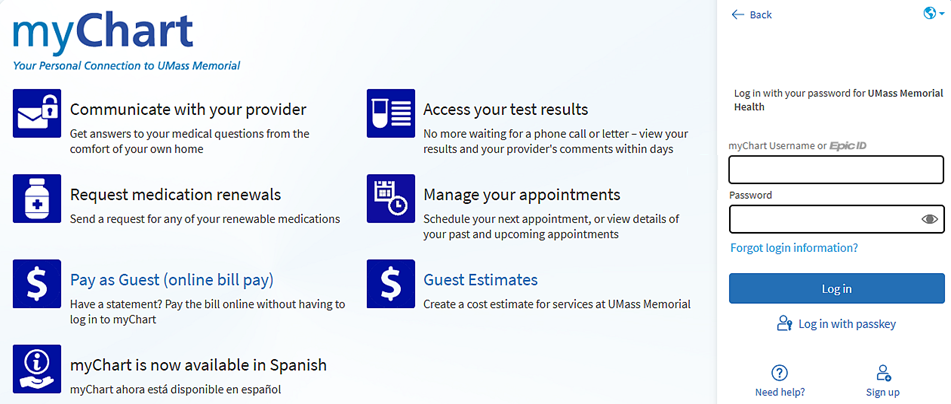
- Log in to myChart with your username and password.
Once you log in, your screen updates to bring you to the "Verify Your Identity" page.
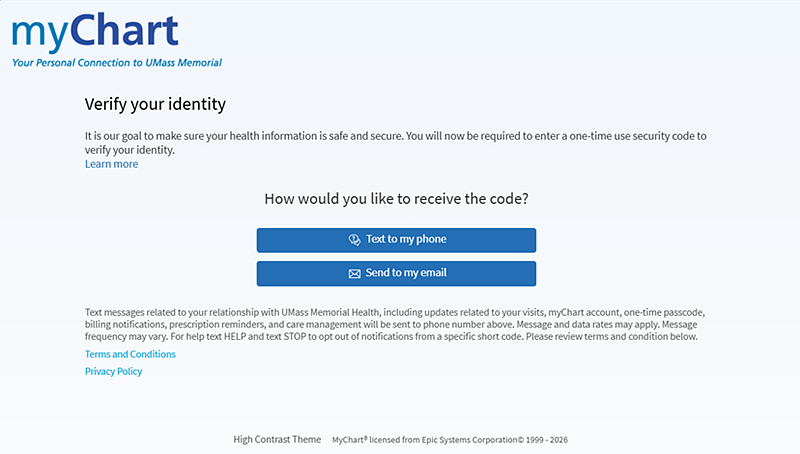
- Choose how you want to receive your six-digit code
It is important to not close this page. If you mistakenly close this, you will need to select Resend Code to get a new one.
If the Text to my phone or Send to my email buttons don't appear, you do not have that contact information saved in your myChart account. For help, contact our myChart Customer Support staff at 1-855-UMASSMD (1-855-862-7763).
- Check your email or text message for your code.
- Enter the six-digit code on the “Verify Your Identity” page.
Note: Do not enter the sender number (for example, 61317).
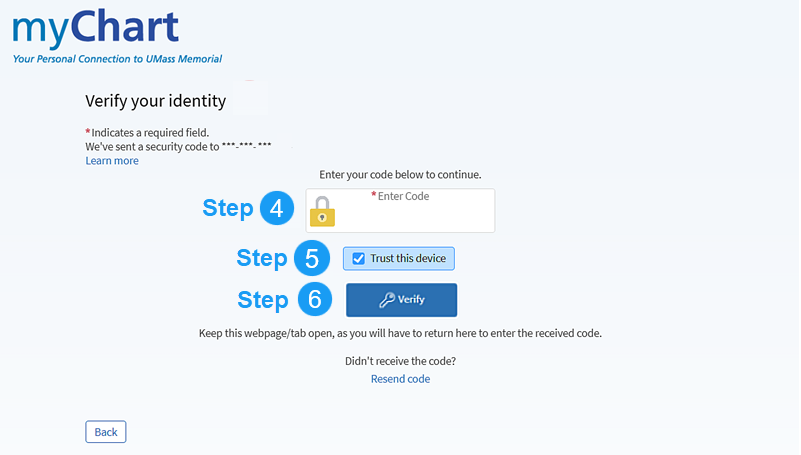
- Use the guidance below to choose whether to Trust this device:
- Trusting this device is a safe option if you are on personal computer, phone, or tablet.
- Leave Trust this device checked.
- If you are using a public or shared computer, such as at a library, this is not a safe option.
- Uncheck Trust this device.
- If you simply prefer to enter a code every time, uncheck this option.
- Trusting this device is a safe option if you are on personal computer, phone, or tablet.
- Select Verify to log in.
What if I do not receive my code?
Text messages usually arrive faster, but either method can take up to 10–15 minutes.
- If you’re waiting for a text message:
- Make sure your phone has a signal and can receive texts.
- If you’re waiting for an email:
- Check your spam or junk folder.
- Add noreply@umassmemorial.org to your email contacts.
If 10–15 minutes have passed, select Resend code.
Note: If you request a new code, be sure to use the most recent one sent.
If you are still having trouble, contact myChart Customer Support at 1-855-UMASSMD (1-855-862-7763).
I’m on a mobile device. Which method works best?
If logging in from a mobile device, we recommend sending the two-factor code via a text message.
- Many phones will automatically recognize the code in the text message.
- You may be able to tap to copy the code or quickly insert it from your keyboard.
Do I have to use two-factor authentication each time I log in?
No, you can setup your myChart to remember the device you are logging into using Trust Device.
This option is pre-selected when you verify your identity in steps 3 and 4. By keeping the blue box selected, you can skip two-factor authentication for 365 days on a device (computer, smartphone or tablet) or internet browser (For example, Microsoft Edge, Chrome, Firefox, or Safari).